 MosaicPatch
Pixelate Part
of an Image
Choose a photo. Select an area. Control the detail.
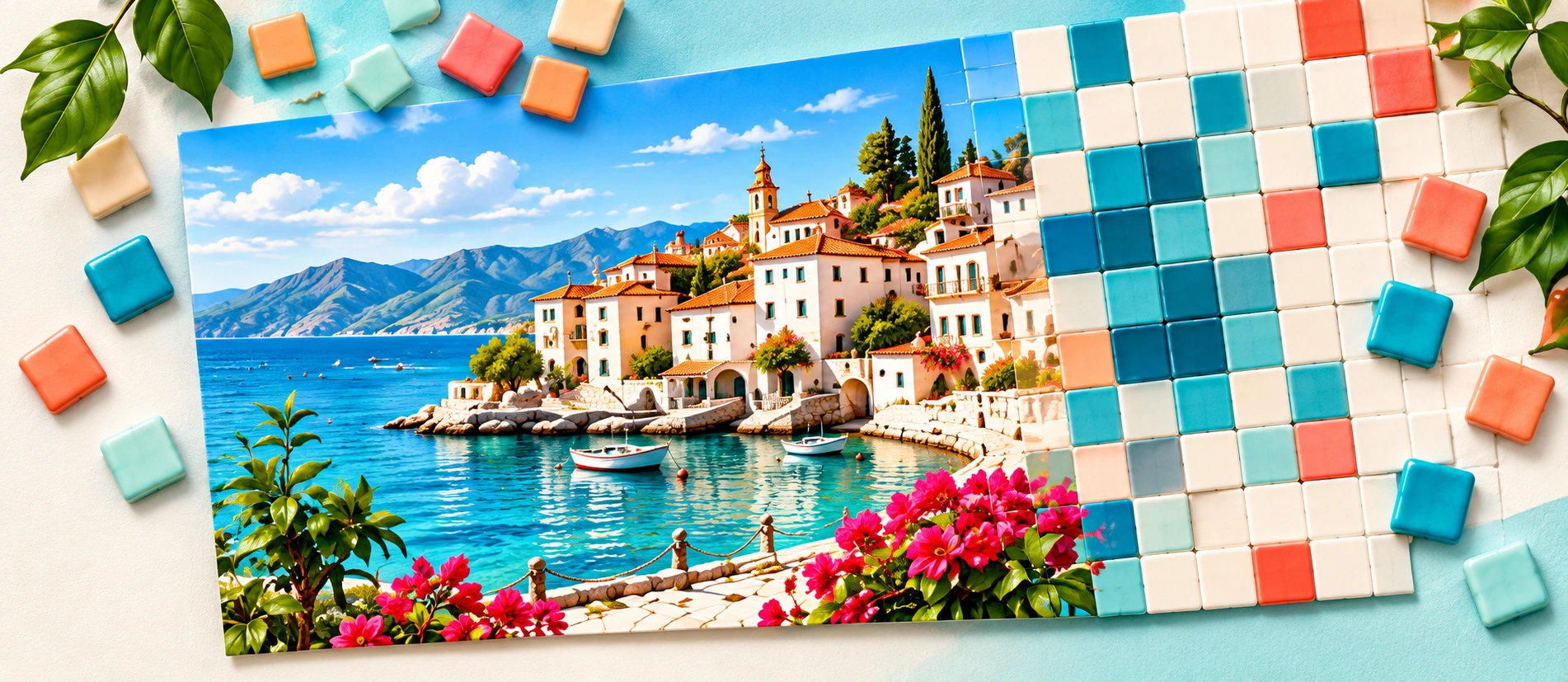
Your image. Your edit.
Selected area
Move selection
Precise selection
 For sensitive information, use solid redaction rather than pixelation.
How it works
A clearer result in three steps.
1 Choose an imageOpen a photo from your device.
2 Select and pixelateDrag and adjust the block size.
3 Download your editSave your edited image as a PNG.
Try an example:
Questions, Answered.
Can I pixelate only part of an image?
Select a rectangular area and apply the effect to that region. Pixels outside it remain unchanged.
Can I change the block size?
Yes. Move the block-size slider between 4 and 100 original-image pixels.
Is pixelation secure redaction?
No. For sensitive information, use solid opaque redaction and verify the exported image.
Can I reset my edit?
Yes. Reset removes the selection and restores the original image in the editor.
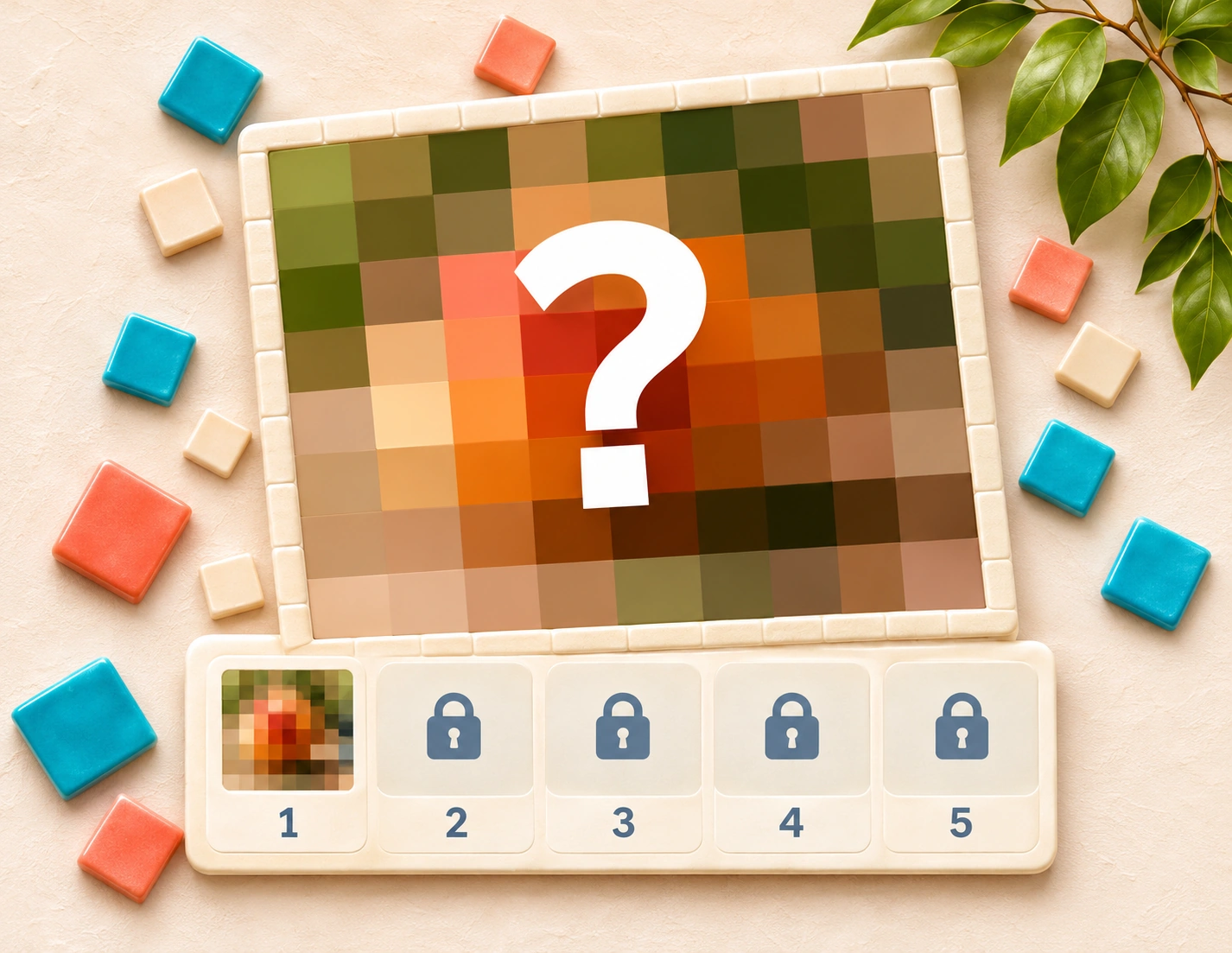
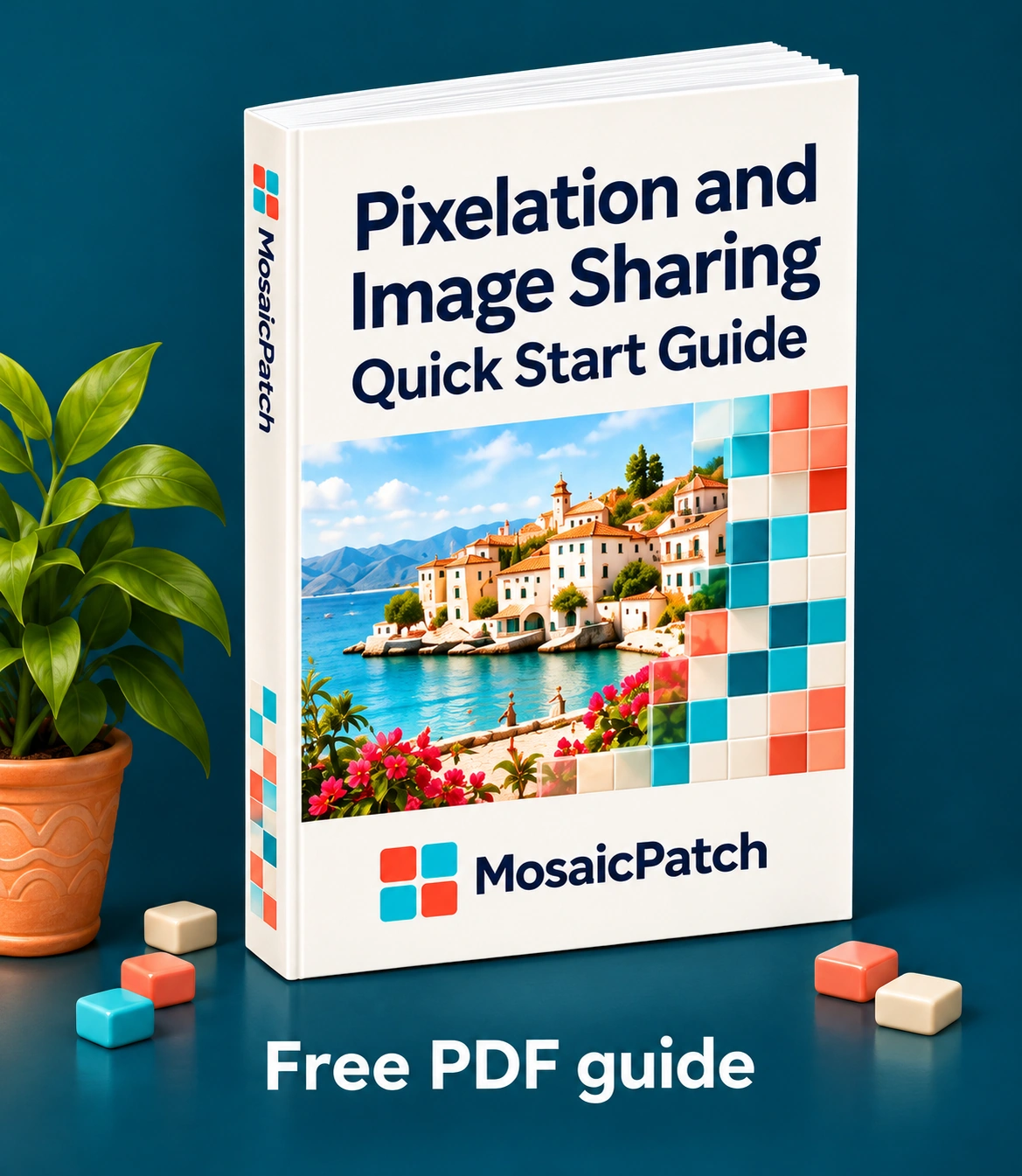
FREE PDF GUIDE
Create and share
with confidence.
- ✓Choose useful block sizes
- ✓Build a picture reveal challenge
- ✓Share images thoughtfully
Email delivery is not connected yet. No email address is collected. Privacy policy.